
How Students Join OrbPops Games From Their Phones
No app install required. Learn how players join live OrbPops sessions on mobile, what to show on the host screen, and how to keep phones landscape-ready for Rocket Race, Treasure Hunt, and Orb City.
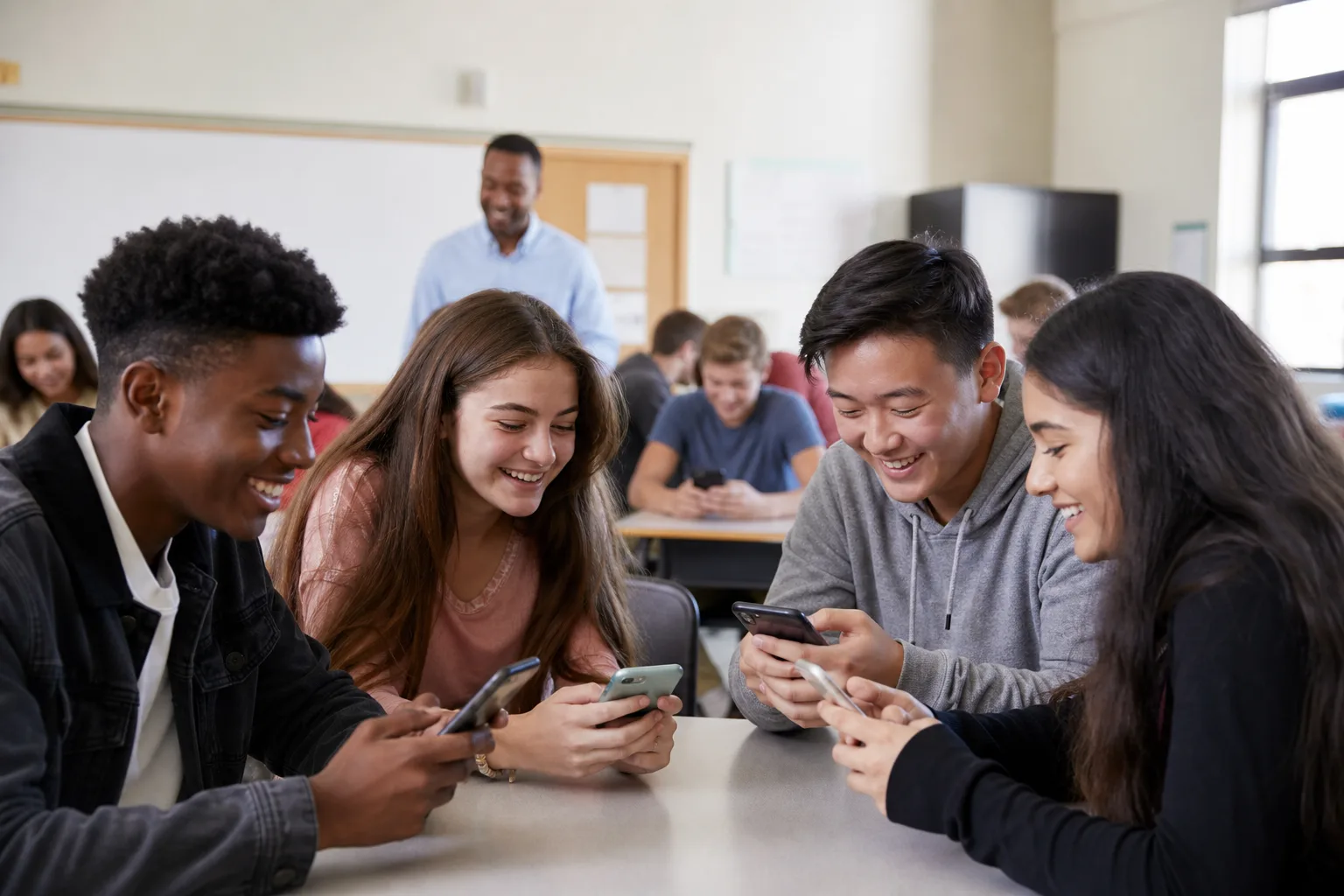
The fastest way to start an OrbPops session is simple: share a join code and let every phone become a game controller. Students do not need to download an app. A browser tab is enough.
This guide covers what hosts should show, how players join on mobile, and a few tips that keep the room running smoothly.
What players need
- A phone or tablet with internet access
- A modern browser (Safari, Chrome, or Edge)
- The join code from the host screen
That is it. No accounts for players. No App Store step. No classroom IT ticket for "install this app."
Step 1: Host opens the lobby
From your dashboard, choose Host a game, pick a Pop, select a mode, and start the lobby. The big join code appears on the host display—project it so the whole room can see it.
Optional: open the join QR if your group prefers scanning. Either path lands on the same join flow.
Step 2: Players open the join page
On their phones, students go to the OrbPops Join page (or scan the QR). They type:
- The session code
- A nickname the class will recognize
- A skin for their rocket, miner, or mayor—depending on the mode

Skins are more than decoration. In Rocket Race, Treasure Hunt, and Orb City, the avatar shows up on the shared board and in the player's mobile HUD, which helps everyone track their progress.
Step 3: Wait for the host to start
Once joined, phones show a waiting state while the lobby fills. When you start the session, questions appear on each device. Players answer on their own screen; you control pacing and review from the host view.
Landscape tips for phone play
OrbPops mobile layouts are built for landscape play—especially Rocket Race, Treasure Hunt, and Orb City. Before the first question:
- Ask students to rotate their phones sideways
- Suggest locking orientation if their device keeps flipping
- Keep the join code visible until late joiners are seated
Classic still works in portrait, but landscape gives more room for choices, timers, and game UI.
Common join issues (and quick fixes)
| Problem | Fix | | --- | --- | | "Code not found" | Confirm the lobby is open and the code is typed exactly | | Slow join on school Wi‑Fi | Ask players to refresh once; avoid VPNs on student devices | | Player stuck on waiting | Host: check the lobby player list; player: rejoin with the same nickname if needed | | Tiny text / clipped UI | Rotate to landscape and reload the page |
Why mobile-first join matters
In most classrooms and workshops, phones are already in pockets. A join flow that respects that reality means:
- Higher participation in the first two minutes
- Less setup time for hosts
- The same Pop works for Classic, Rocket Race, Treasure Hunt, and Orb City—only the skin picker and game board change
Try it this week
Create a short Pop, host Classic or Treasure Hunt, and project the join code. Walk the room once while students enter nicknames, then start.
Sign up free to host your next session, or read the game modes guide to pick the right format for your group.
Related articles
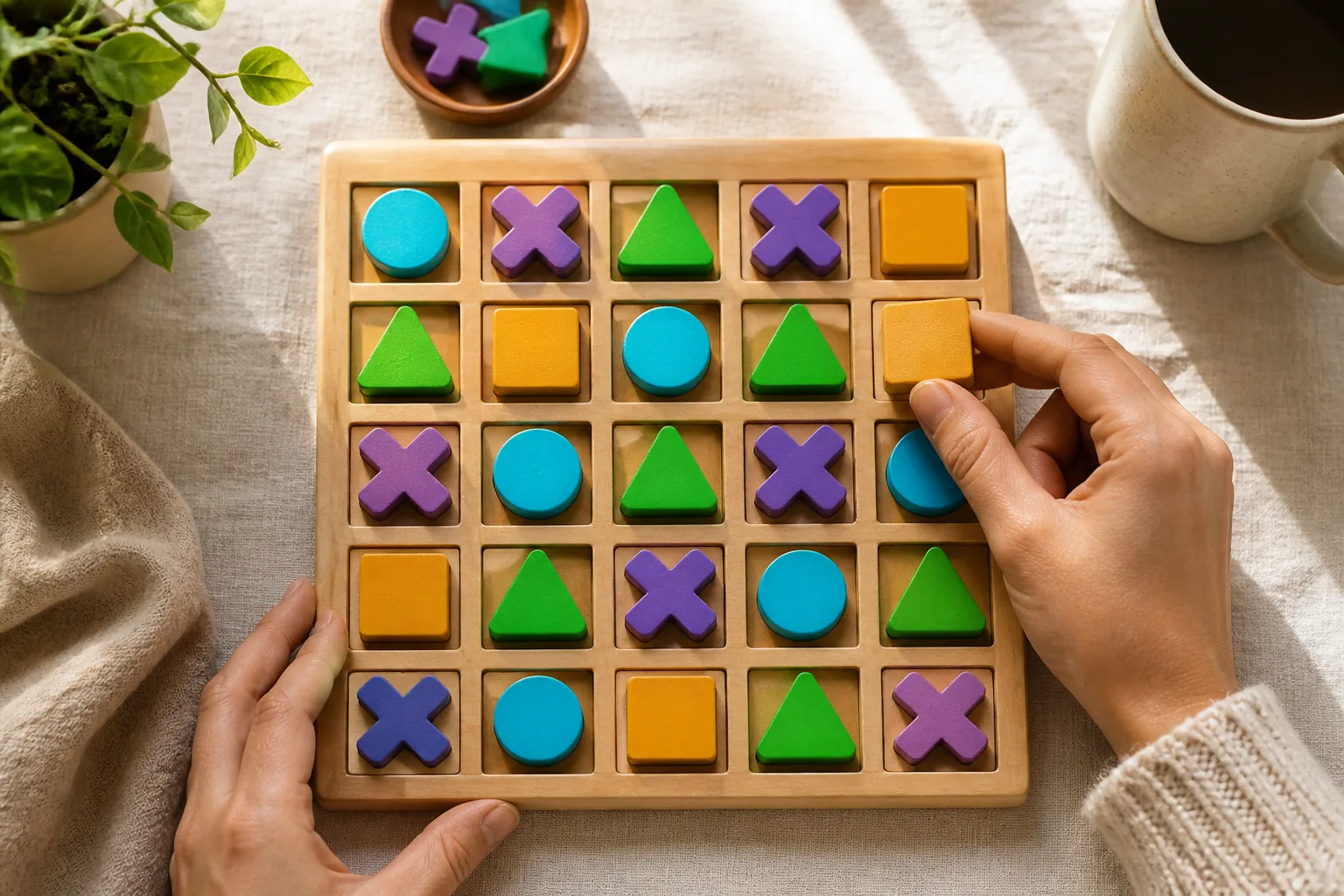
OrbGrid in Class: A Puzzle Mode That Rewards Careful Thinking
OrbGrid turns correct answers into placements on a shared board. Learn when to use it, how scoring lines work, and how to coach students who freeze on big grids.
Read article →
How to Write Quiz Questions That Spark Real Thinking
Fast quizzes fail when every item is a memory trap. Use these patterns to write OrbPops questions that reward reasoning—then pair them with the right game mode.
Read article →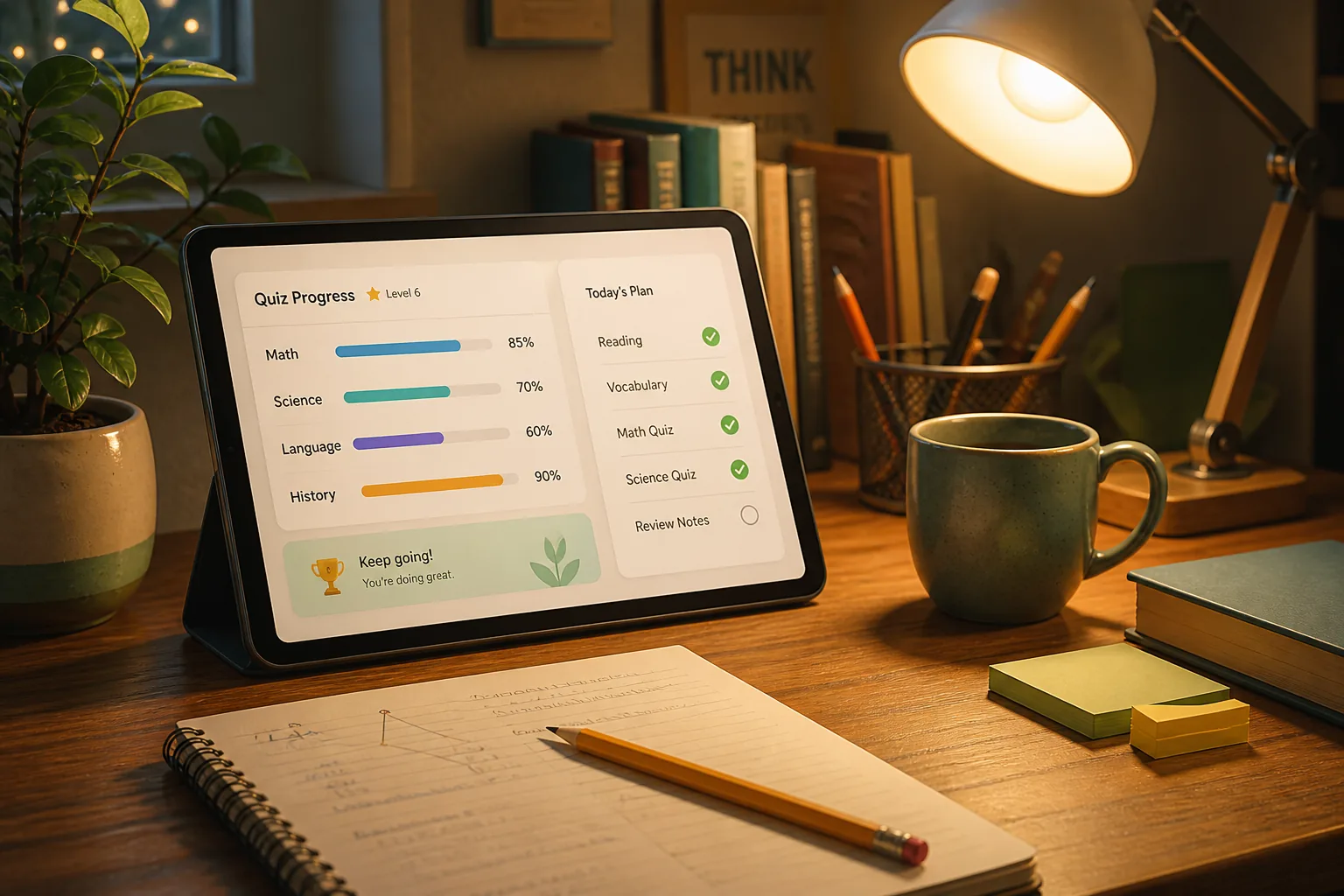
How to Assign OrbPops Homework Students Actually Finish
Skip the worksheet stack. Turn any Pop into a shareable homework link with a clear goal, deadline, and live progress you can review without chasing screenshots.
Read article →